
All Canadian Online Advertising Portal
2 Options: FREE BASIC LISTING and LOW COST PREMIUM LISTING
ADDING YOUR PREMIUM LISTING
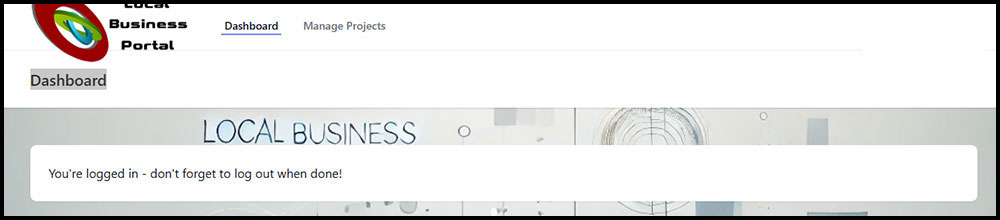
Once you have registered, click on any of the Register/Login buttons visible on our website and use the login credentials you have set up. Once you are in your "Dashboard", click on "Manage Projects" in the top menu bar".
When accessing for the first time, click on "Manage Projects", then "Add Project".
FILLING OUT THE LISTING FORM
Steps to follow after you have registered.
- Business Name: fill in the name under which you operate your business.
- User: Name of the main business contact.
- Category: Click on the down arrow at the end of the line and choose the most appropriate category to represent your business.
- Subcategory: Click on the down arrow at the end of the line and choose the most appropriate subcategory under the category that you added above.
- Service Locations: Click on the down arrow at the end of the line and choose which locations you wish to include. You have three choices:br />
- Cities - when you want to just add a few cities in and around your business location.
- Province/Territories - when you want to add ALL the cities within a certain Province or Territory in Canada.
- All - this will show your listing in over 8000 cities and towns across Canada.
- Phone Business - add in one main phone number for your business.
- Website URL - add in your full website address (https://www.mywebsite.com).
- Description - explain what your business is all about.
- Secondary Description - this is a great place to add information about specials, or special events, or anything you want to have stand out.
- Upload Main Image (green button) - this will be for your logo or an image that represents your brand. Please note that logo images should be small size (maximum 500px X 300px).
- Alternative Text for Main Image - this allows you to add keywords to your image to help with SEO.
- Additional Images (blue Upload Images button) - your photos should all be the same size and direction (all "portrait"480px X 640px or all "landscape" 640px X 480px.)
- Alternative Text - once you upload an image, make sure to add a short sentence that explains your business (alternative text behind an image is a major way to attract Google and other search engines).
- Once your images and/or all text have been uploaded, click on the "Update" button at the bottom of the page.
*Note: if you are unable to upload images, we are more than happy to help you out for a small one-time fee. Contact us for some help.
How To Edit Premium Listings
- After the initial information and image uploads, you can go back and change any text or images you had previously entered or uploaded.
- Click on Manage Projects, which will open up the page you originally filled in.
- You can edit or add anything to your page.
- To replace any existing pictures, delete the image you want to replace and upload a new one.
- When done your changes, click on UPDATE.
- Make sure to click on your name in the upper right hand corner so that you can logout.